Linux Permissions Without the chmod 777 Therapy Session
You run:
ls -l
Linux responds:
-rwxr-xr--
Excellent.
Very helpful.
It looks like somebody dropped a bag of r, w, x, and hyphens onto your terminal and called it access control.
But there is a pattern.
Once you understand that pattern, Linux permissions become much less intimidating.
Start With Three Actions
Linux file permissions commonly describe three basic capabilities:
r = read
w = write
x = execute
Read means you can read the content.
Write means you can modify it.
Execute means you can execute it where that concept applies.
Directories behave somewhat differently because the permissions affect operations involving the directory and its contents, but we can save those details for another day.
For now:
r w x
Three permissions.
Now Add Three Audiences
Linux permissions also need to answer another question:
Permission for whom?
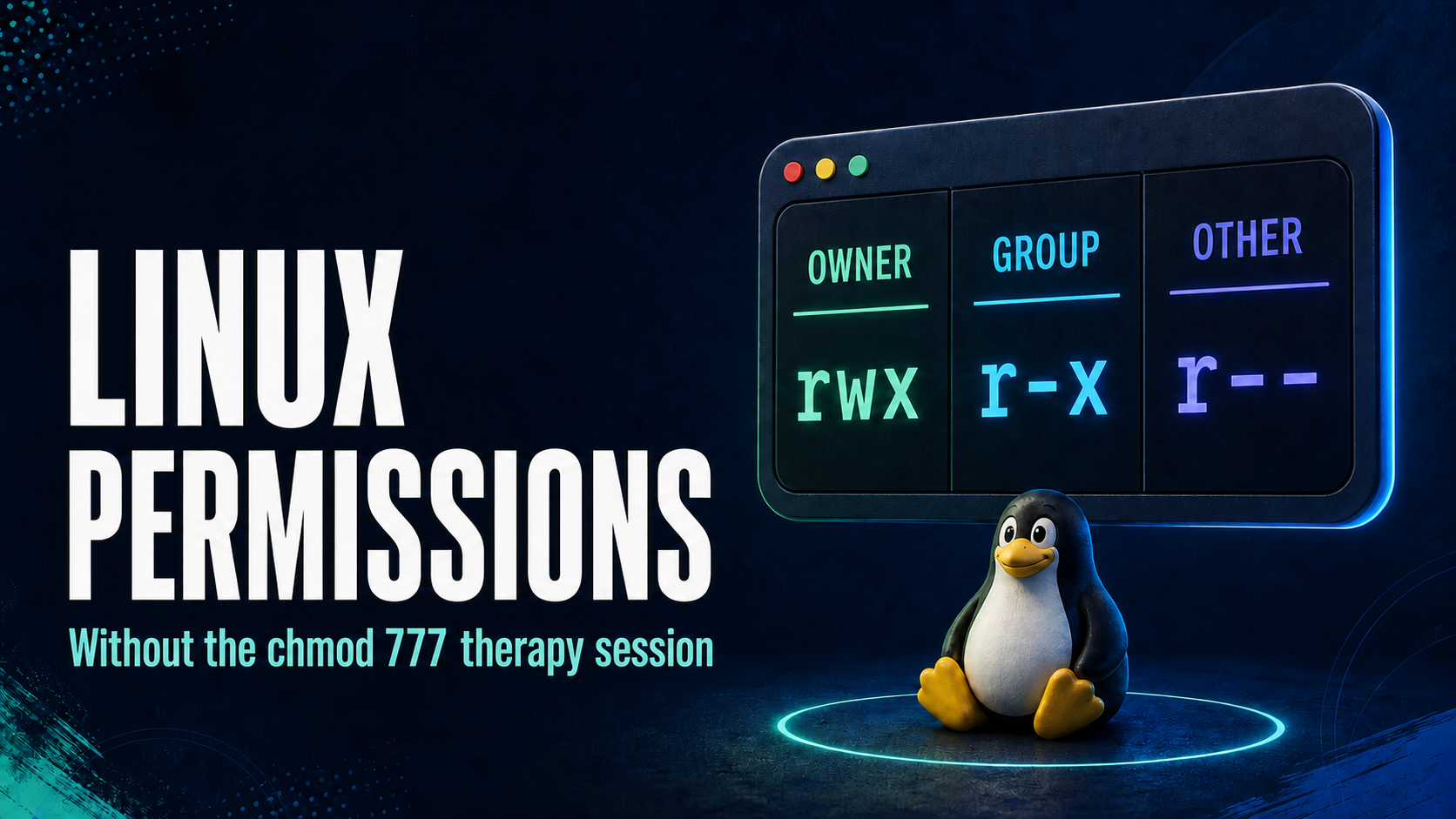
The basic permission display separates access into:
User
Group
Other
Think of it like:
Owner       Group       Everyone else
  |           |               |
 rwx         r-x             r--
Now this:
rwxr-xr--
doesn't look nearly as random.
Break it apart:
rwx | r-x | r--
The owner has:
read
write
execute
The group has:
read
execute
Everyone else has:
- read
That's the basic pattern.
What About the First Character?
You might see:
-rwxr-xr--
That first character is not part of the three permission groups.
It tells you something about the type of filesystem object.
For a regular file, you'll commonly see:
-
For a directory:
d
So:
drwxr-xr-x
starts by telling you:
This is a directory.
Then the permission information follows.
Meet chmod
chmod changes file mode bits, which includes the permissions we're discussing.
You may see symbolic commands such as:
chmod u+x script.sh
Read it rather than memorize it:
u = user
+ = add
x = execute
So:
Add execute permission for the user/owner.
You may also encounter:
chmod g-w file.txt
That removes write permission from the group.
Symbolic notation can be useful for beginners because the intent is visible.
Then There Are Numbers
Eventually someone will show you:
chmod 755 script.sh
and the alphabet soup becomes math soup.
The common values are:
read    = 4
write   = 2
execute = 1
Combine the permissions you want.
For example:
7 = 4 + 2 + 1 = rwx

5 = 4 + 1 = r-x

4 = 4 = r--
Therefore:
755
represents:
User:  rwx
Group: r-x
Other: r-x
You do not need to become a human permission calculator immediately.
Understand the concept first.
Speed comes later.
And Then There Is 777
At some point, nearly every Linux beginner encounters this troubleshooting strategy:
chmod 777 something
Did it fix the permission error?
Maybe.
Did we understand why?
That's the better question.
777 broadly grants read, write, and execute permissions across owner, group, and other permission classes.
That's extremely permissive.
If the correct solution requires one user to have access, giving everyone broad access is not a thoughtful fix.
It is the permissions equivalent of solving a locked-door problem by removing the door.
Sometimes troubleshooting requires temporary experiments.
But the goal should be understanding which access is actually required.
Meet chown
Permissions answer:
What can they do?
Ownership helps answer:
Who owns this?
The chown command changes ownership.
For example:
chown alice report.txt
changes the owner of the file.
You may also specify ownership and group information depending on what you are trying to accomplish.
This distinction matters:
Ownership
    +
Permissions
    =
Access behavior
If you're troubleshooting access problems and only look at permission bits, you may miss half of the story.
Why This Is a Security Topic
Permissions are not just a Linux administration inconvenience.
They represent a foundational security question:
Who should be allowed to do what?
That question appears everywhere in cybersecurity.
A user should not automatically receive access to every file.
A service should not automatically run with unlimited privileges.
An application should not automatically receive access to everything on a system.
This connects to the principle of least privilege:
Give an account or process the access it needs to perform its function, rather than unnecessary access.
That idea appears in operating systems, cloud environments, databases, enterprise identity systems, applications, and security architecture.
Your Linux file is just a small place where you can see the idea happen.
Try It Yourself
Create a file:
touch permissions-lab.txt
Check it:
ls -l permissions-lab.txt
Now change a permission:
chmod u+x permissions-lab.txt
Check again:
ls -l permissions-lab.txt
Do not just look for the command to succeed.
Compare the output.
What changed?
Now remove the permission:
chmod u-x permissions-lab.txt
Check again.
That is the learning loop:
Observe
   ↓
Change
   ↓
Observe again
   ↓
Explain what happened
Don't Memorize Commands Without Meaning
You can search for command syntax.
Understanding is harder to search for.
Instead of memorizing:
chmod 755
ask:
Who am I granting access to?
What access am I granting?
Why does that person or process need it?
Those questions turn a Linux command into a security lesson.
Final Thought
Linux permissions look cryptic because they compress a lot of information into very little space.
But underneath:
-rwxr-xr--
is a simple access-control idea:
Who?
   +
Can do what?
Understand that, and the letters stop looking like noise.
And the next time someone suggests chmod 777 as the universal solution, you will at least know what question to ask next.
Further Reading
For authoritative command behavior, consult the documentation and manual pages for the Linux or Unix-like environment you are using. The GNU Coreutils documentation covers utilities including chmod and chown.
Disclosure: Commands in this article are educational examples. Practice in systems you own or environments intended for learning. File permissions and system behavior can vary depending on the operating system, filesystem, access-control mechanisms, and configuration.