Your Computer Is Talking. Learn to Read the Signs.
Learn to Read the Signs.
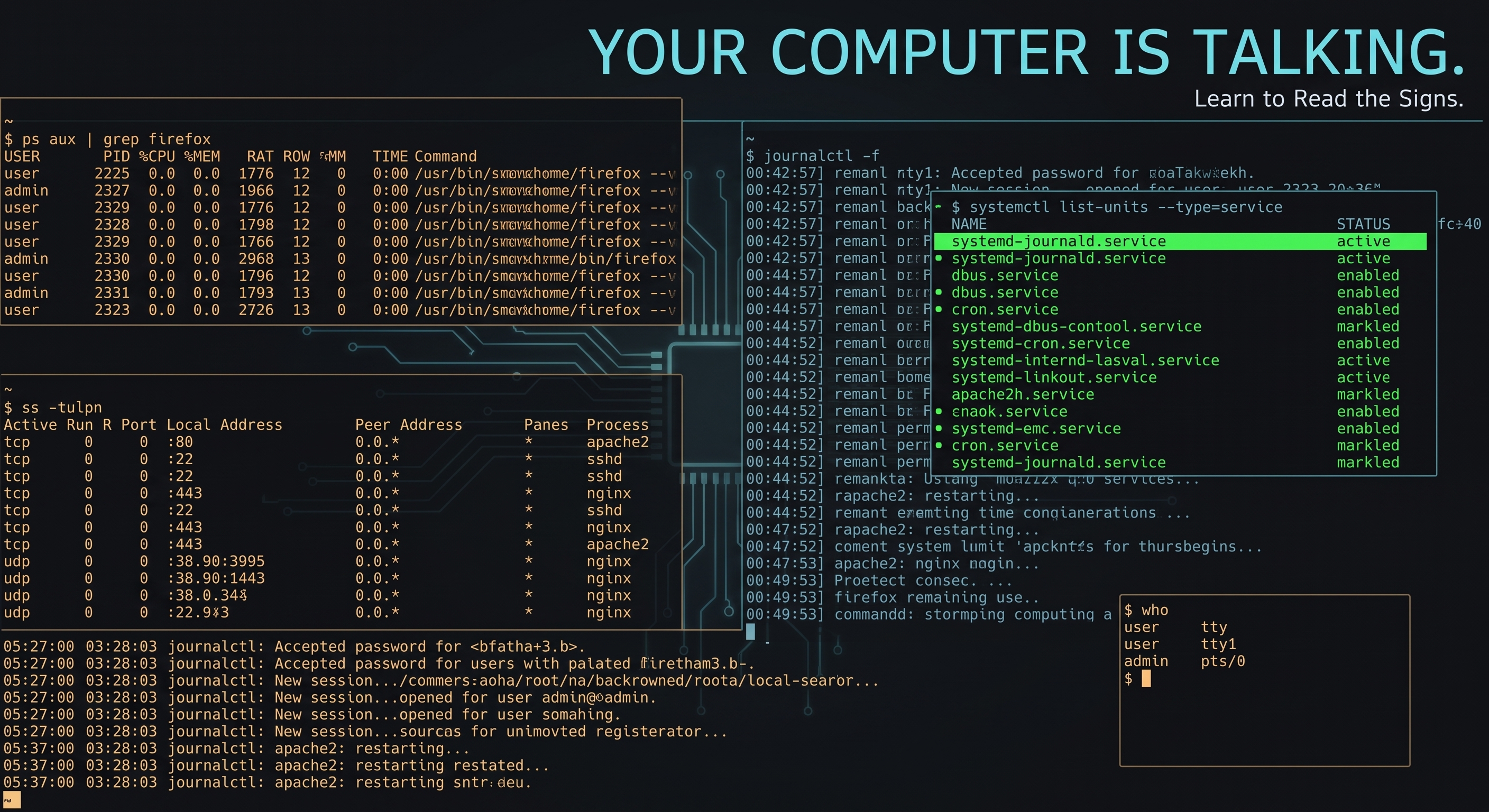
A computer is rarely doing nothing.
Even when the screen looks quiet, processes are running.
Services are listening.
Users are authenticating.
Applications are opening files.
Network connections are being created.
Logs are recording events.
If you want to learn defensive cybersecurity, one of the most valuable things you can do is learn how to observe all of this.
Before asking:
"Has this system been hacked?"
learn to ask:
"What is this system doing?"
Start With Processes
A process is a running instance of a program.
On Linux, one of the simplest ways to see running processes is:
ps aux
You will probably see far more output than expected.
That is good.
Do not try to memorize everything.
Instead, begin asking questions:
What user owns the process?
What command started it?
How much CPU or memory is it using?
Do I recognize it?
Is it expected on this machine?
For a more interactive view, many systems also provide:
top
Processes become much easier to understand when you observe them regularly rather than only when something is wrong.
Look at Listening Services
Next, ask what your computer is waiting for.
On Linux:
ss -tulpn
Depending on your permissions and Linux distribution, the amount of process information displayed may vary.
You might see services listening on addresses such as:
127.0.0.1:631
0.0.0.0:22
Now you have questions.
What service owns port 22?
SSH commonly uses TCP port 22.
Should SSH be running?
Should it be reachable from every interface?
Is that intentional?
This is how networking knowledge becomes security knowledge.
Check Services
Linux systems commonly use systemd to manage services.
Try:
systemctl --type=service --state=running
You might see services for:
Networking
SSH
Logging
Scheduled tasks
Updates
Other system functions
Pick one and investigate it.
For example:
systemctl status ssh
Now you can connect a process to a service and eventually connect that service to network activity and logs.
That relationship matters.
Look at Network Connections
Listening ports tell you what is waiting for connections.
Active connections tell you something else.
Try:
ss -tun
You may see connections to local or remote systems.
Again, do not immediately label unfamiliar activity as malicious.
Ask:
Which application created the connection?
Where is it going?
Is the destination expected?
How long has the connection existed?
Is the traffic related to something I just did?
Defensive analysis is built on questions like these.
Who Is Logged In?
Try:
who
And:
last
These commands can help you inspect current or historical login information available on the system.
Now create an experiment.
SSH into your lab server.
Run:
who
Log out.
Then run:
last
You are no longer just reading cybersecurity theory.
You are observing evidence created by your own actions.
Read the Logs
For systems using the systemd journal:
journalctl
There may be a lot of information.
That is normal.
You can narrow it down.
For example:
journalctl -u ssh
Or, depending on the distribution and service name:
journalctl -u sshd
Now perform an SSH login.
Check the logs again.
Try an incorrect password in a safe lab environment.
Then check again.
What changed?
This is the beginning of log analysis.
NIST's Cybersecurity Framework 2.0 places detection and analysis of possible cybersecurity attacks and compromises within the Detect function.
Establish a Baseline
You will hear the word baseline frequently in security.
For beginners, think of a baseline as understanding what is normal well enough that deviations become noticeable.
Imagine a server that normally has:
SSH
DNS client activity
Software update traffic
No public web service
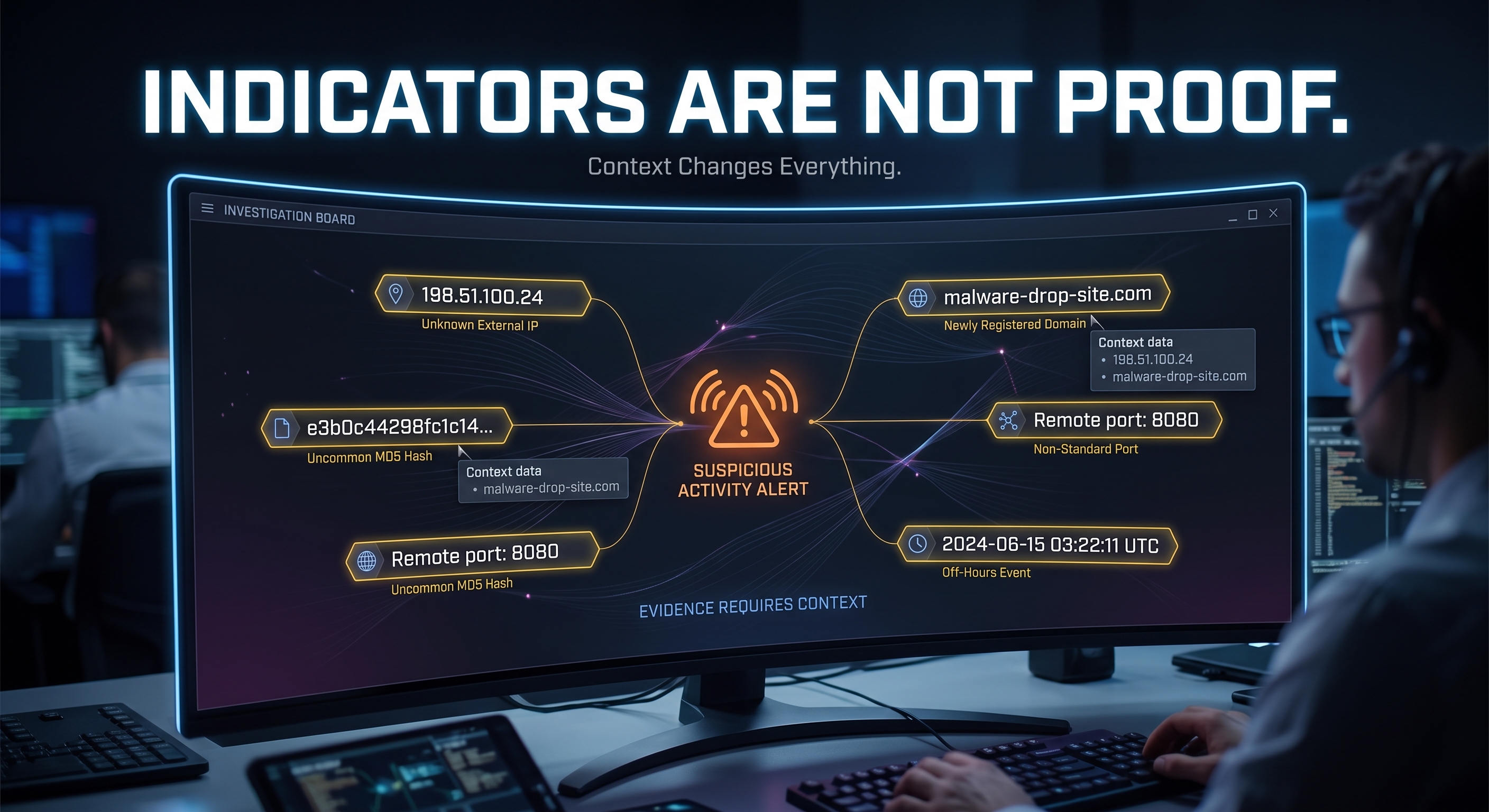
One day you discover:
New service listening on port 8080
Unknown process
Unexpected external connection
Does that prove compromise?
No.
Maybe you installed something and forgot.
Maybe another administrator made a legitimate change.
Maybe a package started a new service.
Or maybe it deserves investigation.
The difference is that you noticed it because you understood what the machine normally looked like.
Do Not Turn "Different" Into "Malicious"
This is an important habit.
Security tools often highlight unusual behavior.
But unusual does not automatically mean harmful.
A new process could be:
A legitimate update
New software
Administrative activity
A scheduled job
A configuration change
Something malicious
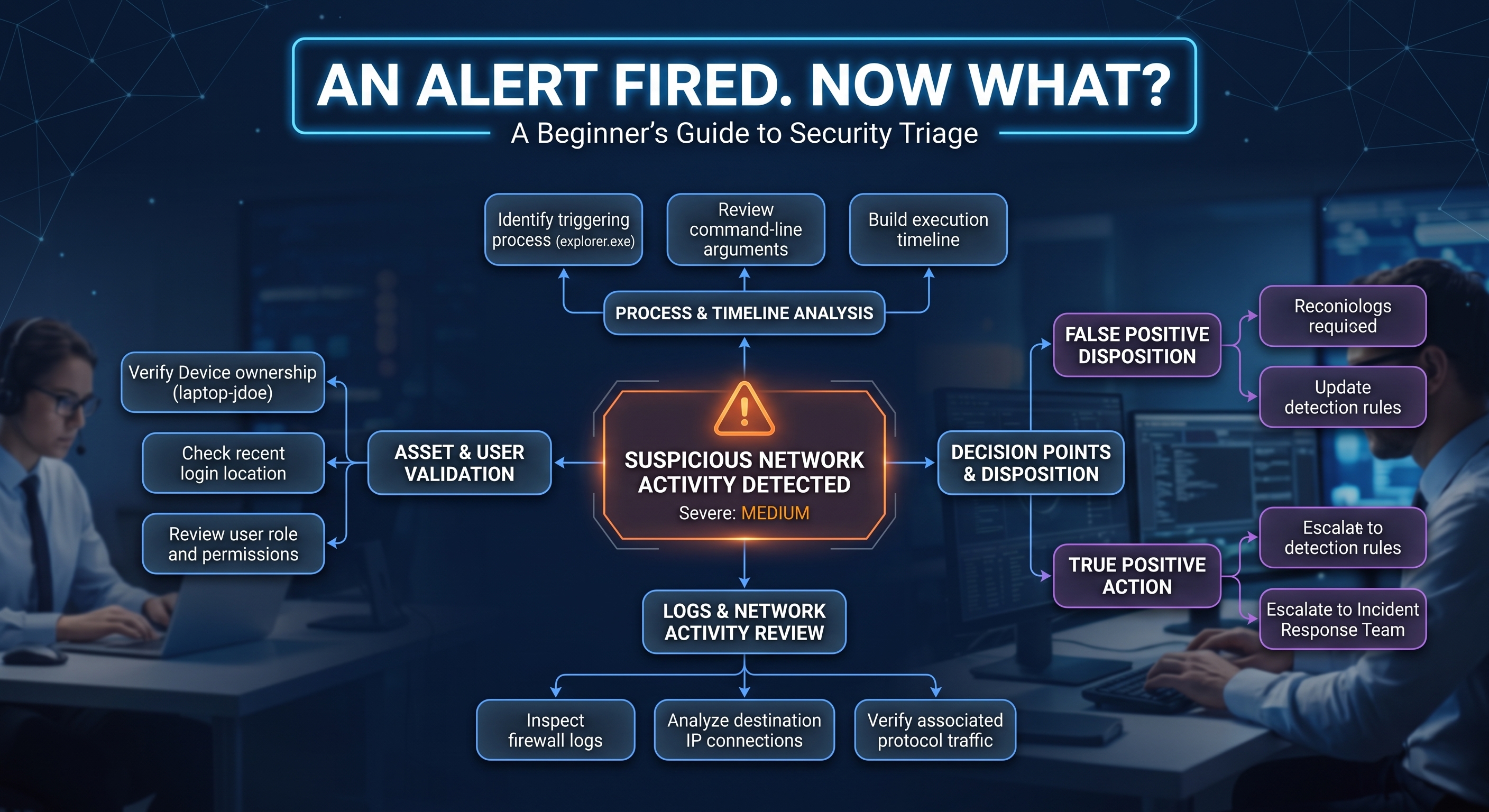
Your job is to gather more information.
Security analysis is not:
Different = Attack
It is:
Observation
     ↓
Context
     ↓
Evidence
     ↓
Assessment
That difference matters.
Build a Five-Minute Observation Routine
Open your Ubuntu home-lab VM.
Run:
who
Then:
ps aux
Then:
ss -tulpn
Then:
systemctl --type=service --state=running
Then:
journalctl -n 30
Do this periodically.
You will slowly stop seeing random terminal output.
You will begin seeing a system.
That shift is important.
What Are You Actually Learning?
At first, these commands may feel disconnected.
But they start fitting together.
For example:
User logs in through SSH
        ↓
ss shows the network connection
        ↓
sshd handles the session
        ↓
A process exists for the connection
        ↓
Logs record the authentication event
Now you are beginning to understand how one event appears across multiple parts of a system.
That is an important defensive-security skill.
When something suspicious happens, you rarely want to rely on only one source of evidence.
You want to correlate what you see.
Ask Better Questions
When you find something unfamiliar, avoid jumping immediately to:
"Is this malware?"
Instead, ask:
What is it?

Who started it?

When did it start?

What is it communicating with?

Is it expected?

What logs mention it?

What changed before it appeared?
These questions move you from guessing toward investigation.
Key Takeaway
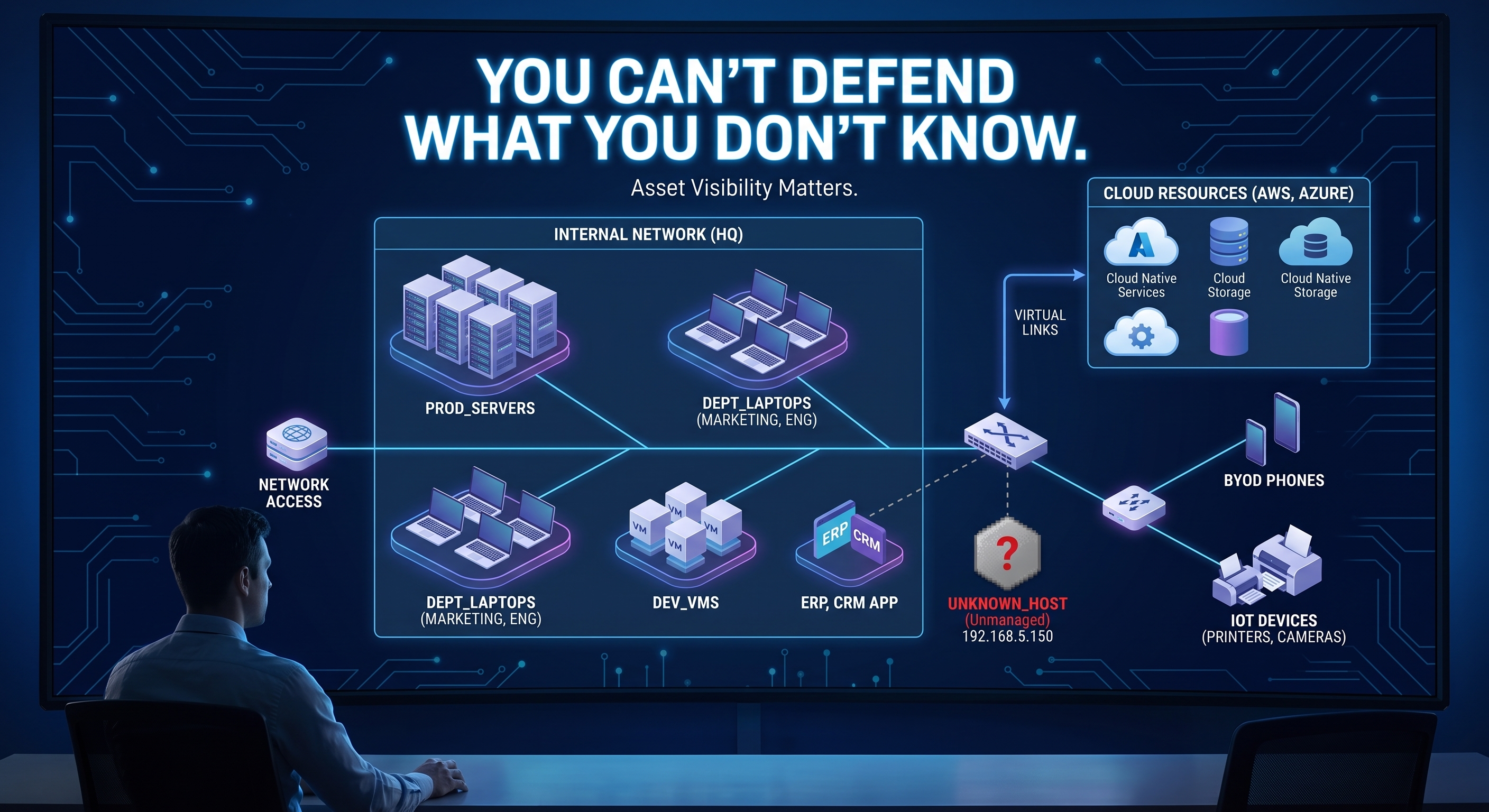
Your computer constantly produces information about what it is doing.
Processes tell you what is running.
Services tell you what capabilities are active.
Network connections tell you who the system is communicating with.
Login records tell you who accessed it.
Logs tell you what happened.
Before learning how to detect something abnormal, learn what normal looks like.
That is one of the foundations of defensive security.
Verified References
NIST Cybersecurity Framework 2.0
The CSF 2.0 Detect function focuses on finding and analyzing possible cybersecurity attacks and compromises.
https://www.nist.gov/cyberframeworkNIST Cybersecurity Framework 2.0 Core
Provides the categories and subcategories associated with the CSF functions, including detection and monitoring activities.
https://www.nist.gov/cyberframework/getting-started/online-learning/components-frameworkNIST Log Management Guidance
NIST provides guidance related to log management and the collection, analysis, and retention of computer security log data.
https://csrc.nist.gov/publications/detail/sp/800-92/final
This article is intended for educational purposes. Commands and exercises should only be performed on systems you own or are explicitly authorized to administer.